
You have an EPUB file and a Kindle device, but getting them to work together can sometimes be confusing.
This is a common issue. Authors encounter it when checking a new manuscript, while readers may face it when someone shares an ebook with them. Fortunately, the solution is simple once you understand the process.
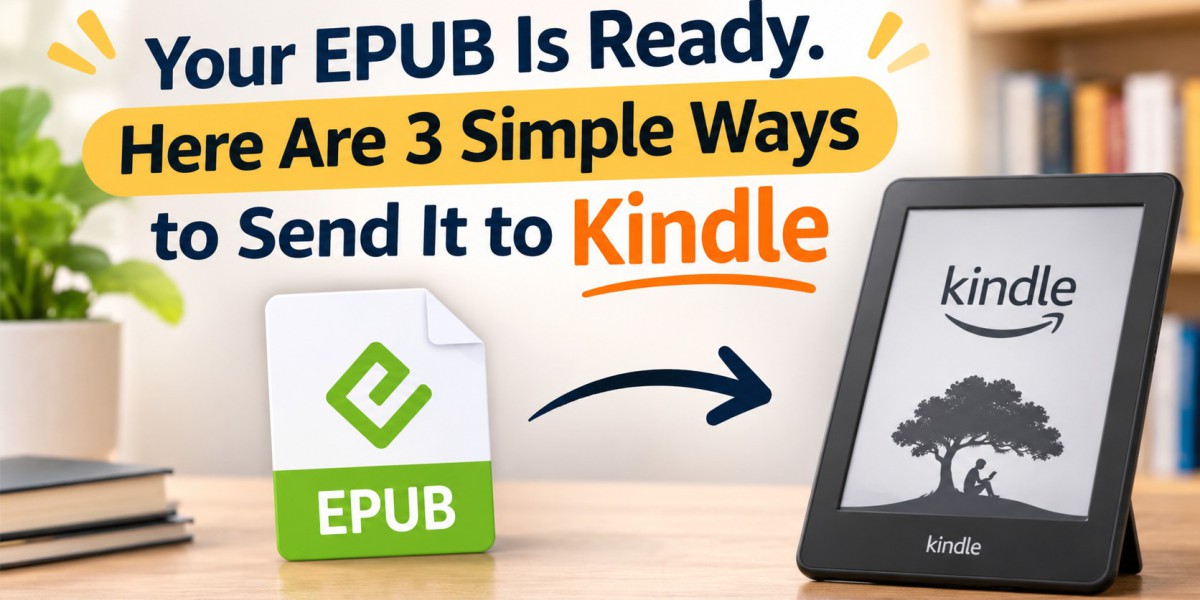
Amazon’s Send to Kindle feature allows you to upload an EPUB and automatically prepare it for your Kindle device. You do not need cables or additional software. In this guide, you will discover three simple methods to send EPUB to Kindle, troubleshoot common issues, and learn what authors should review before publishing their books.
Why Can't Kindle Devices Open EPUB Files Directly?
Kindle devices cannot read an unconverted EPUB file in the same way as many other ebook readers. Amazon follows its own supported format system. When you upload an EPUB through Send to Kindle, Amazon automatically converts the file into a format compatible with your device. This EPUB to Kindle conversion happens in the background.
The benefit is that you no longer need to go through the extra process of manually creating a MOBI file.
However, there is one important requirement. Your EPUB must be properly formatted and free from errors. Damaged files and EPUBs protected by DRM from other retailers may not upload successfully. For additional guidance on creating an accessible reading experience, explore the DAISY Consortium’s EPUB accessibility resources. These resources explain how accessible ebook features can make reading easier for people with different needs.
Can Every Reader Enjoy Your Story Comfortably?
Give your ebook thoughtful formatting that supports clear text, easy navigation, and a more accessible reading experience.
Method 1: Upload Your EPUB Using a Web Browser
If your EPUB file is saved on your computer, uploading it through a browser is a convenient option.
Visit Amazon's Send to Kindle website.
Sign in using the Amazon account connected to your Kindle.
Drag and drop your EPUB file onto the upload page, or select it from your computer.
Choose the Kindle device or devices where you want the book delivered.
Click the Send option to complete the process.
Allow a minute or two for the upload to finish, then check your Kindle library. If the book does not appear immediately, make sure Wi-Fi is enabled and manually sync your device.
This method supports files as large as 200 MB, making it suitable for illustrated books, cookbooks, photography collections, and picture books. It is also an easy way to understand how to add EPUB to Kindle without installing anything.
Authors should remember one thing: a successful upload does not necessarily mean the ebook has perfect formatting. Always open the file and review its pages carefully.
Method 2: Transfer EPUB to Kindle Through Email
If someone has already sent your EPUB file through email, you can transfer it directly to your Kindle. You only need to complete a few setup steps before using this method.
Locate Your Kindle Email Address
Sign in to your Amazon account and navigate to Manage Your Content and Devices. Select the Devices section and choose your Kindle. There, you can find your personal Send to Kindle email address, which ends with @kindle.com.
Authorize Your Email Address
Next, open Preferences and locate Personal Document Settings. Add the email address you will use to send EPUB files.
Amazon only accepts documents from approved email addresses, so make sure you complete this step before sending your ebook.
Attach and Send Your EPUB
Create a new email and enter your Kindle email address as the recipient. Attach the EPUB file and send the message. You can leave the subject line and email body empty.
If Amazon requests confirmation, open the notification and follow its verification link to complete the delivery.
Understand the Email Attachment Limits
You can attach up to 25 files to one email, provided the combined attachment size does not exceed 50 MB. If your EPUB is larger, the browser upload method is a better choice.
You can also send EPUB to Kindle via email from your smartphone. This makes it convenient to understand how to transfer EPUB to Kindle even when you are away from your computer.
Method 3: Send Your EPUB Using a Mobile or Desktop App
If your EPUB file is already stored on your smartphone, you can use the sharing feature to send it to Kindle.
Open the EPUB file through your Files app or an email attachment. Tap the share icon and select the Kindle app from the available options. Follow the instructions on your screen, and your ebook should soon become available in your Kindle library.
Computer users can also choose Amazon's Send to Kindle desktop application. After signing in, simply drag your EPUB file into the application and follow the sending instructions.
Both applications support files up to 50 MB. The exact steps may vary depending on whether you are using an iPhone, Android device, or computer.
If Kindle does not appear in your phone's sharing options, check whether the app needs an update. If the issue continues, open Amazon's Send to Kindle website through your mobile browser and upload the file directly.
Which EPUB Transfer Method Should You Choose?
Method | Best For | File Size Limit |
Browser upload | Large ebooks and occasional transfers | 200 MB |
Email transfer | EPUB files already available in your inbox | 50 MB per email |
Mobile or desktop app | Quick transfers and regular manuscript testing | 50 MB |
If you want to explore more than simply transferring your ebook, read Amazon’s guide to supported Kindle notes and highlights to learn which features are available for personal documents.
For beginners, browser uploading is often the easiest starting point. Authors who regularly review their manuscripts may prefer the mobile or desktop application because it makes repeated transfers quicker.
The right option depends on how frequently you transfer ebooks and where your files are stored.
How to Fix Common Problems When Your EPUB Doesn't Appear on Kindle
Sometimes, the upload process finishes successfully, but the ebook still does not show up on your device. Before trying again, check these common issues.
Kindle is offline: Connect your device to Wi-Fi and perform a manual sync to refresh your library.
Different Amazon accounts: Make sure the account used for uploading the EPUB matches the account registered on your Kindle.
Unapproved sender: If you are using email, confirm that your sending address has been added to Amazon's approved list.
File exceeds the limit: When your attachment is larger than 50 MB, switch to the browser upload option.
Damaged or restricted EPUB: Amazon may reject corrupted files or EPUBs protected by DRM from other retailers. Try opening the file in another ebook reader to check whether it works.
Book is stored in the cloud: Your ebook might already be available in your Kindle library but not downloaded to the device. Select its cover to download it.
If these solutions do not resolve the problem, request or download another copy of the EPUB file. Changing the filename will not fix a damaged ebook.
Is a Technical Setback Holding Up Your Book?
Move forward with professional ebook preparation and publishing guidance tailored to your manuscript’s needs.
Do You Really Need Additional Software?
In most situations, you do not need extra software to send an EPUB to Kindle. Amazon automatically handles the conversion process through its Send to Kindle service. Tools such as Calibre are mainly useful when you need to repair a damaged EPUB or make changes to its internal structure.
There is also no need to convert your EPUB into MOBI before uploading it. MOBI is an older ebook format, and Amazon no longer requires this additional step for Send to Kindle uploads.
Authors should also understand that sending an EPUB to their personal Kindle is only one part of the proofreading process. It helps you check how the manuscript looks on an actual device, but it does not show every detail of the final customer experience.
Before releasing your ebook, use Kindle Previewer or the KDP preview tool to inspect its appearance. You should also review Amazon’s Kindle Publishing Guidelines for important information about ebook formatting, navigation, and structural requirements.
An Essential Kindle Proofreading Checklist for Authors
Whether you are publishing your first ebook or preparing your fifteenth release, testing your manuscript on Kindle can help you identify formatting issues before readers encounter them.
Use this checklist during your review:
Test font sizes: Increase and decrease the text size to make sure the content adjusts properly.
Review navigation links: Open every table of contents link and confirm that it takes you to the correct chapter.
Inspect visual elements: Check images, captions, tables, and other design elements for alignment and display issues.
Examine chapter beginnings: Look for unnecessary spaces, unexpected gaps, or inconsistent formatting.
Read the opening page: Review the beginning of your book from a reader's perspective to identify anything that feels out of place.
First-time authors may overlook spacing problems or broken links, while experienced writers can also miss small formatting errors when working under tight deadlines. Having another person review the manuscript can make a difference.
If you need professional assistance, Hemingway Publishers provides editing, formatting, and publishing support to help authors prepare their books for release.
Could One Last Review Strengthen Your Manuscript?
Catch overlooked errors, improve clarity, and give your book the professional attention it deserves before release.
Final Thoughts
Now you know how to send EPUB to Kindle using three different methods. Browser uploading works well for larger files, email is useful when your ebook is already in your inbox, and mobile or desktop applications make frequent transfers more convenient.
Choose the method that suits your needs, transfer your EPUB, and take some time to review your manuscript on a Kindle device. A careful final check can help you catch problems early and provide readers with a smoother ebook experience.