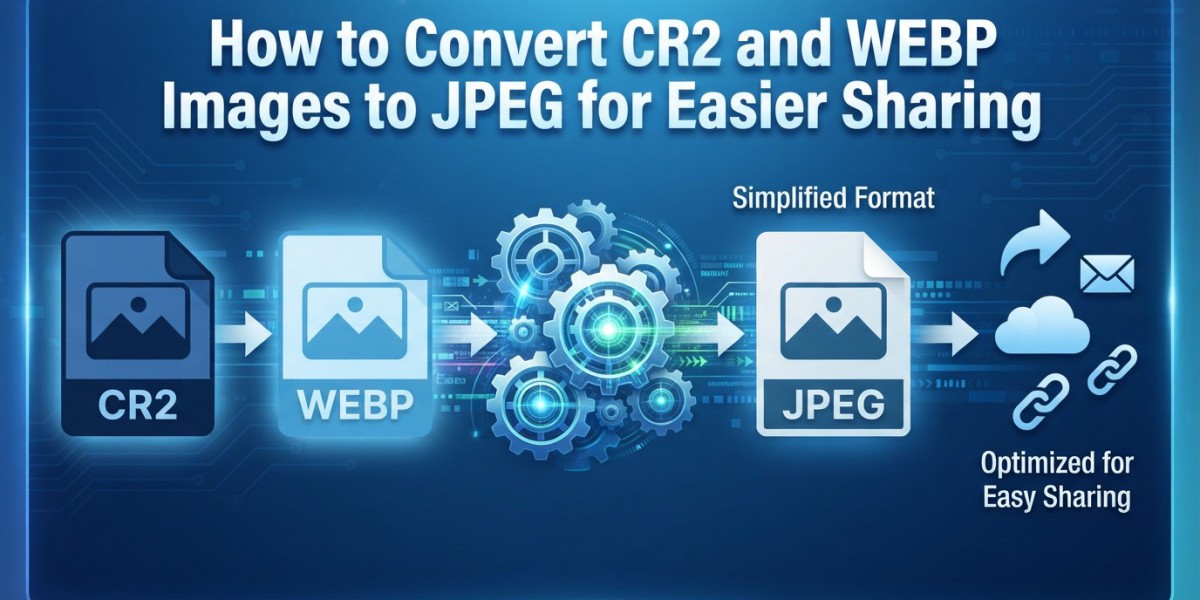

Digital photography and modern web publishing use many different image formats, and each format serves a particular purpose. Camera RAW files such as CR2 preserve extensive image data for editing, while WEBP is designed for efficient digital delivery. When compatibility and convenient sharing are priorities, JPEG can be a practical output format. An image conversion tool can simplify these format changes when you need a quick workflow without complicated software.
Understanding when and why to convert an image is important before processing it. A CR2 file is intended to retain camera data for photography workflows, whereas JPEG is a more widely supported format for everyday viewing and sharing. Similarly, WEBP can be highly efficient for websites, but some applications may work more conveniently with JPEG.
Understanding CR2 Files
CR2 is a RAW image format associated with Canon digital cameras. Unlike a typical JPEG, a RAW file contains extensive information captured by the camera and is generally intended for further editing.
Photographers often keep CR2 originals because they provide greater flexibility when adjusting exposure, white balance, color, and other characteristics during post-processing. However, RAW files are not always convenient for ordinary sharing or uploading.
This is where conversion becomes useful. Creating a JPEG copy allows you to keep the original CR2 file while having a more widely compatible version for everyday use.
Why Convert CR2 to JPEG?
There are several reasons someone may need to turn CR2 into JPEG. JPEG files are easier to open across many common applications, devices, websites, and sharing services.
If you need to send photographs to someone who does not use RAW-processing software, JPEG is usually a more convenient format. It can also be useful when uploading images to services that do not accept CR2 files.
The important point is to preserve the original CR2 files. A JPEG export should generally be treated as a derivative copy rather than a replacement for the original RAW photograph.
Converting WEBP to JPEG
WEBP is commonly used for efficient web images, but you may encounter situations where a JPEG version is more convenient. For example, an application, document workflow, or publishing system may have better compatibility with JPEG.
When you need to convert WEBP images to JPEG format, an online converter can provide a straightforward workflow. You can upload the WEBP image, process the conversion, and save the resulting JPEG without setting up specialized desktop software.
This approach can be particularly useful for occasional conversions or when working across different devices.
How to Convert CR2 to JPG
If you are wondering how to convert CR2 to JPG, the process generally involves opening the RAW file in compatible photography software and exporting it as JPEG. During export, you can typically choose dimensions, quality, color settings, and other output options.
The exact workflow varies depending on the application. Professional photo editors may provide detailed control over the export, while simpler utilities may offer only basic conversion.
For photographers working with large collections, batch processing can be useful. It allows multiple RAW images to be exported using consistent settings, saving time compared with processing every file manually.
Converting CR2 Pictures to JPG
When you need to turn CR2 pictures to JPG, think about the purpose of the final images. If they are intended for websites, email, social media, or everyday sharing, JPEG is often a convenient output.
Before exporting, review the image dimensions and quality settings. There is usually no need to create an enormous JPEG if the image will only be displayed at a smaller size.
At the same time, avoid choosing an unnecessarily low quality setting. The goal is to produce a JPEG that is small enough for convenient use while retaining the visual detail required for its intended purpose.
A Complete CR2 Conversion Guide
For photographers who want a more detailed explanation of the process, this CR2 to JPG conversion guide covers the fundamentals of CR2 files, conversion methods, quality considerations, and practical workflows.
Understanding the difference between RAW and JPEG is especially important. A RAW file provides greater editing flexibility, while JPEG is generally more convenient for finished-image distribution. Keeping both can therefore be useful: the RAW file serves as the master, and JPEG versions can be created for specific purposes.
Working With WEBP Files
WEBP can be useful when file efficiency is important, particularly for web-based content. However, not every workflow treats WEBP in the same way.
If you need to save WEBP file as JPEG, the conversion process creates a separate JPEG representation of the image. Because JPEG uses its own compression method, the output should be checked for quality after conversion.
For photographs, JPEG can be a practical format. For graphics with transparency, however, you should remember that JPEG does not preserve transparent areas.
WEBP to JPEG Online
A WEBP to JPEG online workflow is particularly convenient for occasional tasks. It removes the need to install additional image-processing software and can be accessed through a browser.
A typical process involves selecting the WEBP file, uploading it, converting it, and downloading the JPEG. If the workflow involves multiple images, look for a tool that supports batch processing.
Online conversion can be convenient, but you should still review the resulting files. Check image dimensions, sharpness, colors, and file size before using them in a final project.
Batch WEBP to JPEG Conversion
When dealing with a large number of WEBP files, a batch WEBP to JPEG tool can reduce repetitive work. Instead of converting each file separately, multiple images can be processed together.
Before beginning a batch conversion, organize the original files and decide how the converted images should be named. Keeping originals and converted files in separate folders can make the workflow easier to manage.
Batch processing is especially useful for content libraries, website assets, product images, and other collections where the same conversion needs to be repeated.
Preserving Image Quality During Conversion
Conversion does not automatically mean that an image will maintain identical characteristics. JPEG uses lossy compression, so export settings can influence the final appearance and file size.
When converting CR2 files, start with the original RAW image and export directly to JPEG whenever possible. This gives you more control over the final result.
When converting WEBP, inspect the JPEG afterward. Look for compression artifacts around edges, changes in fine detail, color shifts, and unexpected background changes.
It is also helpful to keep an untouched copy of the source file. That way, you can create another JPEG using different settings if the first version does not meet your needs.
Choosing the Right Format
The appropriate format depends on your objective:
CR2: Useful as a camera RAW source for professional editing workflows.
JPEG: Convenient for finished photographs, sharing, and broad compatibility.
WEBP: Useful for efficient web delivery and modern digital workflows.
There is no need to convert every image simply because another format exists. Instead, choose a format based on compatibility, editing requirements, file size, transparency, and intended use.
Final Thoughts
Converting CR2 to JPEG can make photographs easier to share and use across common applications while allowing photographers to preserve their original RAW files. WEBP-to-JPEG conversion can similarly help when a JPEG-compatible workflow is required.
Whether you are processing one photograph or a large collection, focus on the purpose of the final image. Choose suitable dimensions, avoid unnecessarily aggressive compression, and keep original files separate from converted copies.
A thoughtful conversion workflow lets you benefit from the strengths of different image formats without sacrificing access to your original assets.
Frequently Asked Questions
1. What is a CR2 file?
CR2 is a Canon RAW image format that stores image data captured by compatible Canon cameras. It is commonly used as an original file for photographic editing.
2. How can I transfer CR2 to JPG?
You can open the CR2 file in compatible photo-processing software and export it as JPEG. Many photography applications support RAW-to-JPEG export.
3. Can I convert WEBP to JPEG online?
Yes. Browser-based conversion tools can convert WEBP files into JPEG without requiring desktop image-processing software.
4. Can multiple WEBP files be converted to JPEG?
Yes. A batch conversion workflow can process multiple WEBP files at once when the selected tool supports batch processing.
5. Does converting CR2 to JPG reduce image quality?
JPEG uses lossy compression, so some image information can be discarded during export. Using appropriate quality settings can help preserve the visual characteristics needed for the final image.