

Popular Posts
Learn how an MKV to MP4 converter works, why MP4 is widely supported, and how to convert MKV videos efficiently without complicated software.
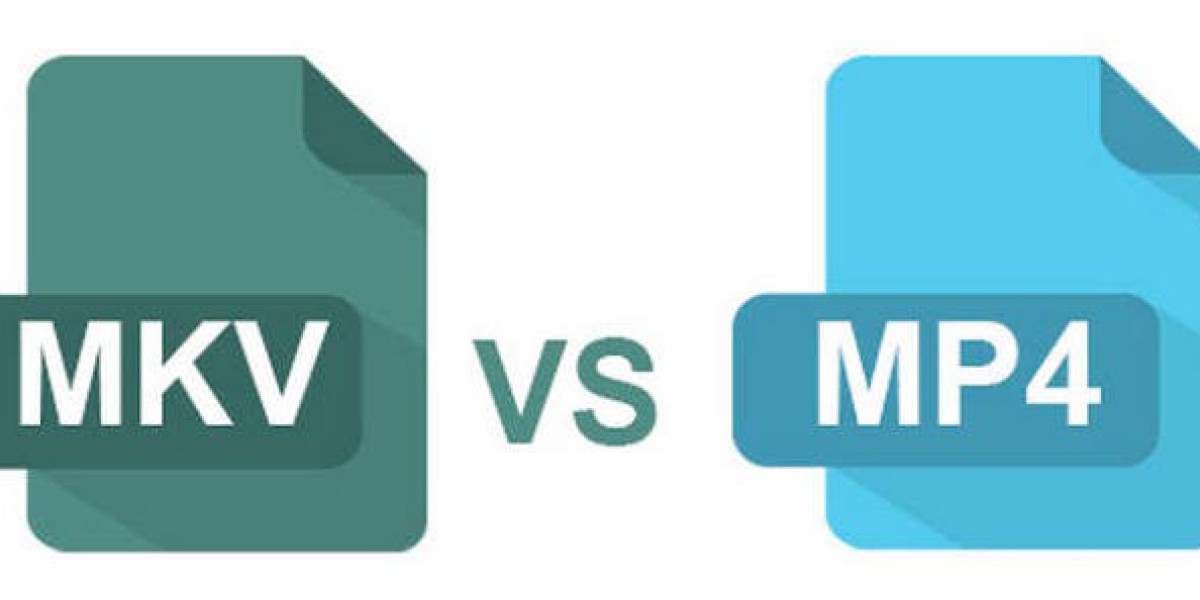
Video formats play an important role in how easily digital content can be stored, shared, edited, and played. MKV is a popular container format because it can hold high-quality video, multiple audio tracks, subtitles, and other media elements in a single file. However, MKV files are not supported equally well by every device, browser, media player, or editing application. This is where an MKV to MP4 Converter can be useful.Converting MKV files to MP4 can make videos easier to use across smartphones, computers, smart TVs, tablets, and online platforms. MP4 is one of the most widely supported video formats, making it a practical choice when compatibility and convenient sharing are important.What Is the MKV Format?MKV, short for Matroska Video, is a multimedia container format designed to store different types of media data in one file. An MKV file can contain video, audio, subtitles, chapters, and metadata.One reason MKV is popular is its flexibility. A single file may contain several audio languages or subtitle tracks without requiring separate files. It is frequently used for high-definition and high-resolution video content.Despite these advantages, MKV is not universally supported. Some older devices, media players, video editors, and web-based platforms may have limited support for MKV files. Users may therefore need to convert their videos into a more widely compatible format.Why Convert MKV to MP4?MP4 is a common choice for video distribution because it is supported by a wide range of devices and applications. There are several practical reasons someone might convert an MKV file to MP4.1. Better Device CompatibilityMP4 files can generally be played on smartphones, tablets, computers, gaming systems, smart TVs, and many other devices. If an MKV file does not open correctly on a particular device, converting it to MP4 can help resolve compatibility issues.2. Easier Online SharingMany websites and online services have specific video-format requirements. MP4 is frequently accepted for video uploads, making it convenient for people who need to share content online.Whether you are uploading a personal video, preparing media for a presentation, or sending a video to another person, MP4 can provide a straightforward solution.3. Convenient Video EditingVideo editing applications vary in their support for different container formats. While many modern editors can handle MKV, MP4 is commonly supported by editing software and can provide a simpler workflow for users.Converting before editing may also help users avoid compatibility problems when importing video files into their preferred editor.4. Smaller and More Practical FilesThe final file size depends on the codecs, resolution, bitrate, frame rate, and other conversion settings. However, converting a video to MP4 with suitable compression settings can create a manageable file for storage and sharing.It is important to remember that changing the container does not automatically guarantee a smaller file. The resulting size depends heavily on the encoding settings used during conversion.How Does an MKV to MP4 Converter Work?An MKV to MP4 converter processes the original MKV file and creates a new video file in the MP4 container format. Depending on the converter, the process may involve either remuxing or re-encoding.Remuxing changes the container while keeping compatible video and audio streams intact. This can be relatively fast because the actual media streams do not necessarily need to be compressed again.Re-encoding, on the other hand, converts the video or audio streams into codecs suitable for the desired output. This can take longer but may provide greater control over quality, compatibility, and file size.For users who simply want a compatible file, an online conversion tool can be more convenient than manually configuring codecs and command-line software.How to Convert MKV to MP4 OnlineOnline conversion can be useful when you do not want to install dedicated desktop software. The general process is straightforward.Step 1: Select Your MKV FileStart by choosing the MKV video stored on your computer or supported device. Before uploading, make sure you have the correct file and that it is not damaged.Step 2: Choose MP4 as the Output FormatSelect MP4 as the target format. Depending on the tool, you may also see additional settings for resolution, quality, codec, bitrate, or other parameters.If you are unfamiliar with advanced video settings, the default options are often a reasonable starting point.Step 3: Start the ConversionOnce the file and output format have been selected, begin the conversion. Processing time depends on factors such as file size, video resolution, encoding settings, and the service being used.Large 4K videos, for example, can require considerably more processing time than short standard-definition clips.Step 4: Save the Converted VideoAfter conversion is complete, save the MP4 file to your preferred location. It is a good idea to play the converted file before deleting the original MKV version.Important Settings to ConsiderAlthough basic conversion can be simple, several technical settings can affect the final result.Video CodecH.264 is widely supported and is commonly used for MP4 video. Newer codecs may provide improved compression efficiency, but compatibility can vary depending on the device or application.ResolutionResolution determines the dimensions of the video. If the original MKV is 1080p, keeping the same resolution can help preserve its visual quality. Reducing resolution can decrease file size but may also reduce detail.BitrateBitrate has a significant effect on both quality and file size. A higher bitrate can preserve more detail, while a lower bitrate can produce a smaller file with potentially more visible compression artifacts.Frame RateIf possible, maintaining the source video's frame rate can help preserve the original motion characteristics. Changing frame rate unnecessarily may affect how smooth the video appears.Audio SettingsAudio codec, bitrate, and channel configuration can also influence compatibility and file size. AAC audio is commonly used with MP4 because it is supported by many modern devices and applications.MKV vs. MP4: Which Format Should You Use?MKV and MP4 are both useful containers, but they serve somewhat different needs.MKV is particularly flexible for storing complex multimedia content, including multiple subtitle and audio tracks. It can be a good choice for archiving or storing media where advanced container features are important.MP4 is generally more convenient when broad compatibility is the priority. Its widespread support makes it useful for mobile playback, online sharing, presentations, editing workflows, and everyday media consumption.The right format therefore depends on what you intend to do with the video. Keeping an original MKV file can make sense for archival purposes, while an MP4 copy may be more convenient for sharing and playback.Tips for Better Conversion ResultsA few simple practices can improve the conversion experience.First, keep the original MKV file until you have confirmed that the MP4 version works correctly. This provides a backup if the conversion produces an unexpected result.Second, avoid reducing quality unnecessarily. If the original video is high resolution, choosing extremely low-quality output settings can result in noticeable detail loss.Third, consider the device where the converted video will be used. A smartphone may not require the same settings as a large television or professional editing workstation.Finally, check the finished MP4 file for video synchronization, audio quality, subtitles, and playback compatibility.When Should You Use an Online Converter?An online converter can be particularly convenient for occasional conversions. If you only need to convert a few files, using a browser-based service can eliminate the need to install and learn specialized software.Online tools can also be useful when working from different computers because the conversion process does not necessarily depend on having the same desktop application installed.However, users should always consider the privacy and security implications of uploading personal or sensitive video files to any online service. For private recordings or confidential media, locally installed software may be preferable.Common Problems When Converting MKV to MP4Conversion does not always produce perfect results. One common issue is audio-video synchronization, which can occur because of differences between the original and output encoding settings.Another issue is quality loss. Re-encoding a compressed video can reduce quality, especially when using aggressive compression settings.Subtitles can also require attention. Some MKV files contain subtitle tracks that may not automatically transfer into the resulting MP4 file, depending on the converter and output settings.Large files can present another challenge because they may take longer to upload, process, and download when using an online converter.Final ThoughtsConverting MKV videos to MP4 can make media easier to play, share, edit, and store across a wide range of devices. While MKV remains a flexible container for advanced multimedia content, MP4 is often a practical option when compatibility is the main priority.Before converting, consider your intended use, desired quality, file size, device compatibility, and whether subtitles or multiple audio tracks need to be preserved. Choosing appropriate output settings can help you create an MP4 file that balances quality and convenience.For users looking for a straightforward way to handle different video formats online, Lets Convert provides a convenient starting point for everyday file conversion needs.
Read more
Comments