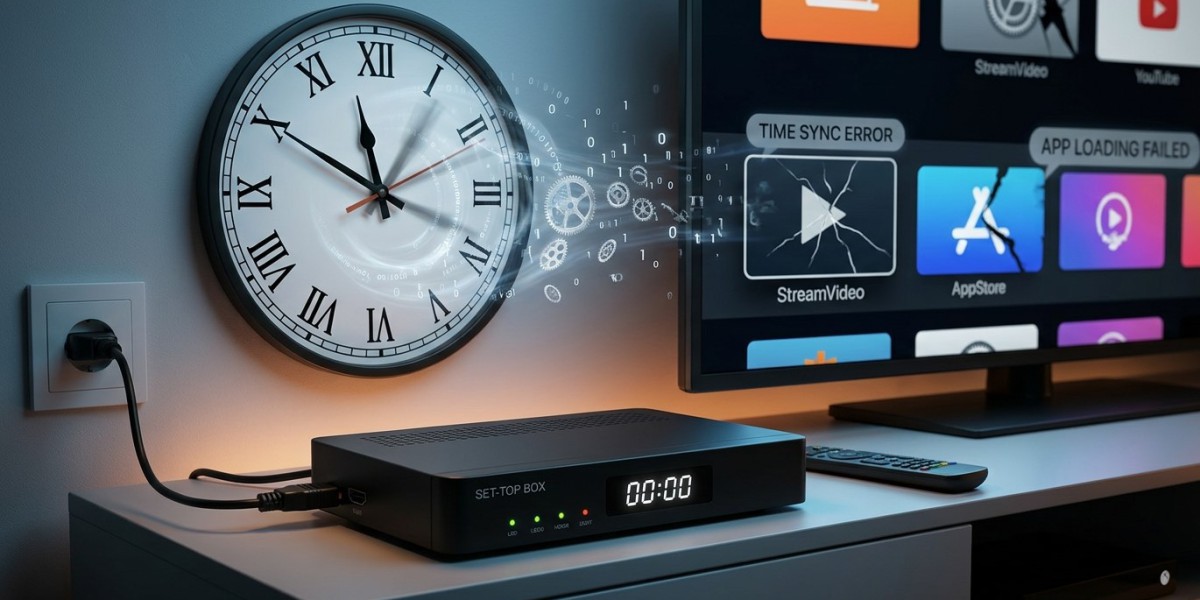

Have you ever switched on your streaming box only to discover the date has returned to an old year, the clock is incorrect, or your apps suddenly refuse to work? This can be frustrating, especially when your streaming service was working perfectly before the device restarted or lost power.
Incorrect date and time settings can affect more than the clock. Apps may struggle to connect securely, login sessions can fail, and scheduled programmes may appear at the wrong time. If you use IPTV India services through an Indian IPTV Box, understanding why the device loses its time settings can help you restore reliable playback without unnecessarily resetting the entire system.
Table of Contents
Why Does Your Box Keep Resetting Its Date and Time?
How Incorrect Time Breaks Apps
How to Fix Date and Time Problems
What If the Time Resets After Every Restart?
When to Contact Technical Support
Frequently Asked Questions
Conclusion and CTA
1. Why Does Your Box Keep Resetting Its Date and Time?
Several issues can cause a streaming box to lose the correct time.
Automatic Time Settings Are Disabled
Many streaming devices use the internet or a network time service to set their clocks automatically. If automatic date and time settings are disabled, the clock may remain incorrect after a restart or power interruption.
The Internet Connection Is Unavailable
Some devices cannot synchronize their clocks until they connect to the internet. If your router takes longer to start than your streaming box, the device may temporarily display an incorrect date or time.
A Power Interruption Occurred
A power cut or unplugging the box may expose a problem with how the device retains its clock settings. Some models maintain time independently, while others depend more heavily on network synchronization.
Time Zone Settings Are Incorrect
Your device may have the wrong time zone selected or may not be applying daylight-saving rules correctly. This can make the displayed time wrong even when the underlying clock is functioning.
Firmware or Hardware Problems
An operating-system bug, incomplete update, corrupted configuration, or hardware fault can also cause recurring clock problems. If the date repeatedly returns to a much older year after every reboot, the issue may require technical support.
2. How Incorrect Time Breaks Apps
An incorrect clock can interfere with several features.
Secure connections: Some apps rely on security certificates with validity periods. A badly incorrect system clock can cause secure connections to fail.
Login sessions: Authentication tokens may be rejected when device time differs significantly from the expected time.
Electronic programme guides: An incorrect clock or time zone can make programme listings appear early, late, or under the wrong time slots.
App updates: Download or installation processes may fail when the device cannot establish a reliable connection.
Playback and scheduling: Reminders, recordings, and scheduled features may not work correctly on devices that support them.
Not every app problem is caused by the clock. Internet outages, expired subscriptions, server problems, and outdated software can produce similar symptoms, so check the time first before assuming the app itself is broken.
3. How to Fix Date and Time Problems
Try these steps in order, testing your apps after each change.
Step 1: Enable Automatic Date and Time
Open your box's Settings menu and look under Date & Time, System, or Device Preferences.
If available, enable options such as Automatic date and time or Use network-provided time. The exact wording depends on the device and operating-system version.
Step 2: Check the Time Zone
Select the correct time zone for your location. If the device offers automatic time-zone detection, you can test that setting as well.
If the clock is correct but the programme guide is still wrong, check the time zone configured within the IPTV app, if one is available.
Step 3: Connect to the Internet
Confirm that the box is connected to a working network. Open a trusted app or website, if supported, to check connectivity.
If the box starts before your router is ready, wait until the internet connection is established and then check whether the time synchronizes.
Step 4: Restart the Box
Once the correct settings are selected and the internet is working, restart the device through its normal restart option. Check the clock again after it reconnects.
Step 5: Check for System Updates
Open the device's system-update menu and check for official firmware or operating-system updates. Follow the manufacturer's instructions and avoid interrupting the update process.
Step 6: Test the Affected Apps
Open the apps that previously failed. If they now work, the incorrect time may have been the cause. If they still fail, check their error messages and investigate other possible causes.
4. What If the Time Resets After Every Restart?
If the date returns to the wrong value whenever you restart the box, try to identify the pattern.
Resets only after unplugging: The device may have difficulty retaining time or restoring network synchronization after a complete power loss.
Resets after every restart: A system setting, firmware issue, or device fault may be involved.
Time is wrong only briefly: The box may need more time to connect to the network and synchronize.
Clock is correct, but the guide is wrong: Check the IPTV app's time-zone or EPG settings separately.
Avoid repeatedly changing the time manually if the device keeps overwriting it. Confirm automatic synchronization settings and consult the manufacturer's troubleshooting guidance.
A factory reset should be a last resort because it may erase app settings, saved preferences, and login information. Before considering one, make sure you have the details needed to restore your legitimate apps and accounts.
5. When to Contact Technical Support
Contact the device manufacturer or service provider if the clock repeatedly resets despite correct settings, the box cannot synchronize its time, or multiple apps continue failing after the clock is corrected.
Provide the device model, operating-system version, the date and time displayed after restarting, and any error messages. Explain whether the problem occurs after a power cut, a normal restart, or every time the device starts.
This information can help support staff distinguish a synchronization issue from a firmware or hardware problem.
6. Frequently Asked Questions
Why does my streaming box show the wrong year?
Automatic time synchronization may be disabled or failing, or the device may have a software or hardware problem. Check the date and time settings and connect the box to a working network.
Can an incorrect date stop my IPTV app from working?
Yes, it can. Incorrect system time may interfere with secure connections and authentication. However, other network, account, or service issues can cause similar failures.
Should I set the time manually?
Manual settings can be useful for testing, but automatic network time is generally preferable when supported. If the clock repeatedly changes back, investigate the underlying issue rather than continually correcting it by hand.
Why is my programme guide showing the wrong time even though the clock is correct?
The IPTV app may have a separate time-zone or programme-guide setting. Check those options and allow time for the guide to refresh.
Will a factory reset fix the problem?
It might resolve a software configuration issue, but it is not guaranteed to fix hardware faults or synchronization problems. Try simpler troubleshooting steps first and back up important settings where possible.
7. Conclusion and CTA
A streaming box with a constantly resetting date and time can cause login failures, connection errors, and incorrect programme listings. Enabling automatic time synchronization, checking the time zone, confirming internet access, and updating the system are sensible first steps.
If the clock continues resetting after every restart, the issue may require help from the device manufacturer or a qualified technician.
For more information about your streaming setup, visit IPTV India and explore the Indian IPTV Box page. Keeping your device settings accurate and your software updated can help you enjoy a more dependable home entertainment experience.